The name looks familiar
The sender name says your company, your bank, or a person your customer already trusts.
[ plain english guide ]
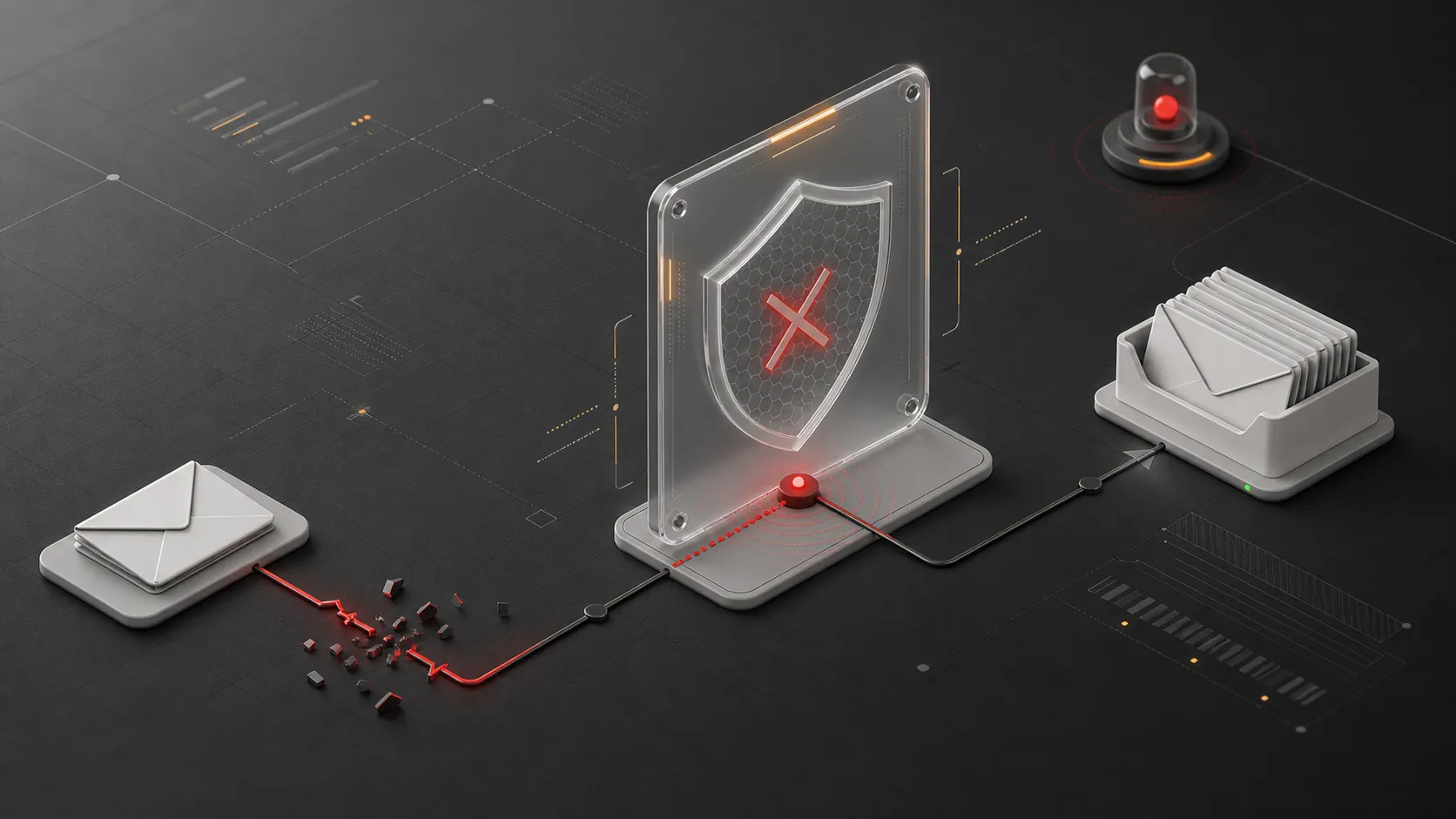
Spoofing is when someone sends an email that looks like it came from your domain, even though you did not send it.
[ the simple version ]
People trust names they recognize. A spoofed message abuses that trust by putting a familiar business, coworker, vendor, or customer in the sender line.
The attacker may not have your password. They may not be inside your mailbox. They are trying to make the message look believable enough for someone else to click, pay, reply, or share a file.
The sender name says your company, your bank, or a person your customer already trusts.
The message asks for a payment, a password reset, a file, or a quick approval.
The email lands during a busy moment, when people are less likely to inspect the address.
If your domain has weak protection, the receiving inbox may have less proof that the message is fake.
Attackers often pair a familiar sender name with an ordinary attachment. The goal is not to look dramatic. It is to look normal enough for someone to click.
One attachment
Notice_Of_Deactivation.eml
8.7 KB
This example is fake. It mirrors the pattern, not a real sender or domain.
The visible From and To addresses use the same mailbox, which can make the message feel internal.
Deactivation, storage, payroll, and security warnings are designed to make people open first and verify later.
The first email can stay short because the real phishing link or fake message is inside the attached file.
Attachments do not automatically mean spoofing.
The spoofing part is the forged sender identity. The attachment is often the delivery method for the scam.
An attached email contains the real lure, often a fake Microsoft or Google sign-in page.
A PDF claims to be an invoice, scan, contract, or tax notice and sends the reader to a link or QR code.
The attacker sends the fake sign-in page as a file so the first email contains fewer obvious links.
An archive hides scripts, shortcuts, or malware behind a routine-looking document name.
[ how protection works ]
Your domain can publish instructions that help inboxes spot fake mail. The names are technical, but the questions are simple.
SPF
This record lists the services that can send mail for your domain, such as Google Workspace, Microsoft 365, or a help desk.
DKIM
This signature helps inboxes confirm that an approved service sent the message and that it was not changed along the way.
DMARC
This policy tells inboxes what to do when a message claims your domain but fails the sender checks.
Inbox Vital checks your domain, explains what is weak, and keeps watching for changes. You get the plain readout, not a wall of record syntax.
Scan my domainNo. A spoofed email can pretend to be from you without the attacker logging into your account. Account takeover is still serious, but it is a different problem.
You can make it much harder for inboxes to accept fake messages from your domain. The usual path is a clean sender list, valid signatures, and a policy that tells inboxes to reject failures.
No. Someone has to change the records, but you do not need to read the syntax to understand the risk or the fix.
Email setups change. A new newsletter tool, help desk, CRM, or domain host update can weaken protection later. Monitoring catches drift before customers have to notice it.
[ start here ]
Run a scan, see the weak spots in plain English, and keep your domain watched as your email setup changes.